
How to Send Animated GIF by Email, Text or WhatsApp
You can send animated GIF files by email, text message, WhatsApp and other compatible messaging services once the GIF is saved on your phone or computer. The important part is having the actual .gif file available on your device rather than only viewing an animation on a webpage.
With GoodluckCraft, a finished greeting is rendered as a GIF, automatically downloaded to your device and also delivered to your email. You can then decide who receives it, which app to use and when to send it.
How to Send Animated GIF Files
Once the GIF is stored on your device, the sharing process is similar whether you use email, messaging or WhatsApp.
The basic steps are:
- Create or download the GIF.
- Find the
.giffile on your phone or computer. - Open the email or messaging app you want to use.
- Choose its attachment, photo, media or file option.
- Select the downloaded GIF.
- Add a personal message if needed.
- Send it.
An animated GIF should play on services that support GIF animation. A static card stored as a GIF remains a still image.
The exact buttons and menus vary between devices and apps, but you are always working with the same finished file.
Turn this message into an animated greeting card
Add names, personalise your message and preview it instantly.
No signup · Secure checkout · Export-ready GIFs
Get 1 Free Greeting CardCreate Your Own GIF Before Sending It
If you do not already have a GIF, you can create a personalised one in the GoodluckCraft builder before choosing where to send it.
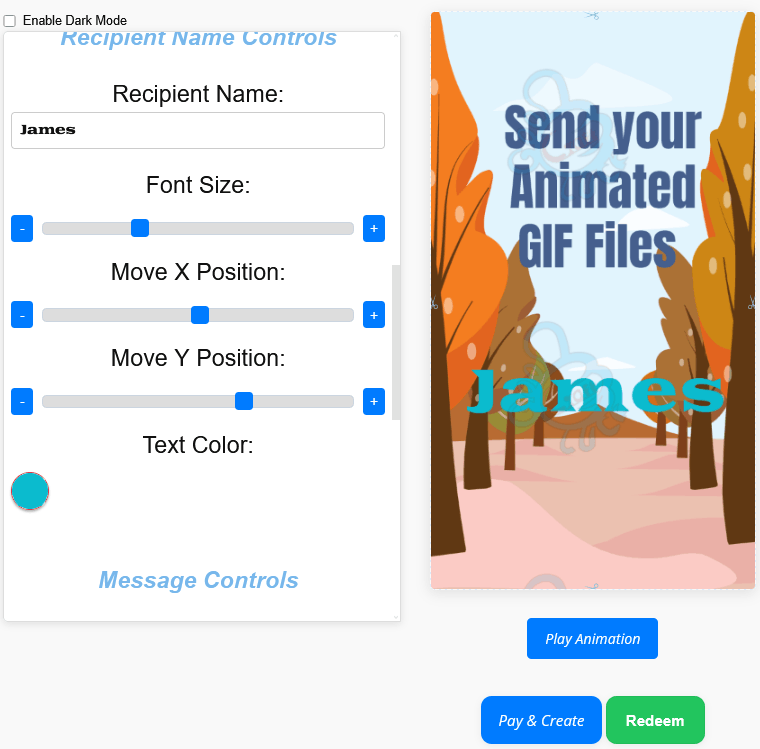
Open the GoodluckCraft personalised greeting card builder and prepare your design.
You can:
- Click Get Free Voucher when using the available free option.
- Enter the sender and recipient names, or begin with the prompt option.
- Add or edit your message.
- Choose a background.
- Adjust the text, including its size, colour and position.
- Choose a static or animated presentation.
- Preview the design.
- Create the finished card.
After rendering, the actual GIF automatically downloads to your device. A copy is also sent to your email.
You therefore receive a usable file rather than only a temporary preview or link.
How to Send an Animated GIF by Email
Email is useful when you want to send the full GIF file directly to a recipient and include a subject line or additional written message.
When sending email GIF files, attach the downloaded .gif in the same way you would normally attach another image or document.
In Gmail:
- Open a new email.
- Enter the recipient’s email address.
- Add your subject.
- Select Attach.
- Find the downloaded GIF.
- Select the file.
- Add an accompanying message if you want one.
- Send the email.
Google provides current instructions for sending attachments with Gmail.
When sending GIF in email, using the actual file means the recipient can receive the greeting without needing to visit GoodluckCraft.
For somebody sending GIF via email after creating a GoodluckCraft card, no separate GIF conversion is required. The rendered greeting is already supplied as a GIF.
For birthday-specific email greetings, you can also see Animated Birthday Cards by Email
How to Send a GIF in a Text Message
A downloaded GIF can also be selected from your device and added to a compatible messaging conversation.
To send a GIF in a text message:
- Open your messaging app.
- Start or open the conversation.
- Select the photo, attachment or file control.
- Locate the saved GIF.
- Select it.
- Add text if needed.
- Send.
On an iPhone, files and images stored on the device can also be passed to compatible apps through Apple’s sharing options. Apple explains this in its guide to sharing photos from an iPhone.
Some messaging services may process uploaded media differently, so the appearance of the GIF can vary between apps.
How to Send an Animated GIF on WhatsApp
You can send your own downloaded GIF through WhatsApp instead of choosing one from WhatsApp’s built-in GIF search.
To do this:
- Open WhatsApp.
- Open the contact or group.
- Tap the attachment or media option.
- Find the GIF saved on your phone.
- Select it.
- Add a message if required.
- Send.
For a WhatsApp insert GIF action involving your own personalised design, select the file that was downloaded from GoodluckCraft.
A WhatsApp message GIF can contain a birthday greeting, romantic message, congratulations, work message, thank-you note or another design you have created yourself.
For a fuller guide focused specifically on cards created for WhatsApp, visit Free WhatsApp eCards.
What Happens to Your GoodluckCraft GIF After Creation?
The output stage matters because it determines what you can do with the design afterwards.
When a GoodluckCraft card has been successfully created:
- the finished GIF automatically downloads to your phone or computer;
- another copy is sent to your email;
- you receive the actual GIF file;
- you can keep it on your device;
- and you decide which compatible service receives it.
An animated presentation produces an animated GIF. A static presentation produces a still, single-frame GIF.
GoodluckCraft does not automatically send the finished greeting to your WhatsApp contact, text-message recipient or email recipient. It creates and delivers the file to you, then you choose where to send it.
Need a Message for Your GIF Greeting?
The design can be ready before the wording is. GoodluckCraft has message collections that you can use for inspiration before putting the words into your GIF.
For romantic wording, browse Touching Love Messages for Her or Sweet Words to Make Her Feel Special.
For a morning greeting, see Good Morning Messages for Her.
For a birthday greeting to a partner, see What to Write in a Birthday Card for a Boyfriend.
Choose the wording that matches the recipient, edit it to sound like your own message and then place it inside the builder.
Why an Animated GIF May Appear as a Still Image
A GIF can sometimes look static after it has been sent even though the original file contains animation.
This can happen when:
- an app displays only a still preview;
- the receiving service does not display animated GIFs in that particular view;
- the file has been converted into another format during sharing;
- the recipient is looking at a thumbnail rather than the opened file;
- or the upload did not complete correctly.
First, open the original .gif file on your own device. If the animation plays there, the original GIF has been created correctly.
You can then try attaching the file directly instead of copying a preview image.
The way a GIF is displayed after sending is ultimately controlled by the receiving app or service.
File Attachment or Copy and Paste?
Attaching the actual GIF is generally the clearest method when you want to preserve the file you created.
Copying an image from a browser or preview may sometimes copy only what is currently visible rather than the original animated file.
When possible:
download first → locate the .gif file → attach that file.
That process is especially useful when sending GIF via email, adding a personalised GIF to WhatsApp or moving the same greeting between different devices.
Can the Same Animated GIF Be Shared More Than Once?
Because GoodluckCraft gives you the finished file, you are not restricted to using it once.
You can keep the GIF and share it again through another compatible service. A birthday greeting sent by email, for example, could also be sent through WhatsApp.
For highly personalised designs, check the recipient’s name before reusing the file. A card carrying one person’s name will obviously not suit a different recipient without being recreated.
Send a GIF Created With Animated Text
Some GIFs centre almost entirely on moving words rather than a traditional greeting-card layout.
GoodluckCraft’s Text Animation GIF Generator covers that process in more detail, including text animation, backgrounds and visual effects.
Once the animated text GIF has been created, the sharing process is the same:
download the GIF → choose the destination → attach the file → send.
That separation is useful because the creation method and the sending method are two different stages.
Tips Before Sending an Animated GIF
A quick check before sharing can prevent simple problems.
Make sure:
- the correct recipient name appears in personalised designs;
- the text is readable;
- the original GIF animates properly;
- you have selected the actual
.giffile; - the file has finished uploading before you press send;
- and your additional written message matches the occasion.
If the GIF is being viewed mainly on phones, shorter wording and clear text contrast can make the design easier to understand in a small preview.
Frequently Asked Questions
These answers cover the practical questions that often come up when sending a downloaded GIF.
Can I Send Animated GIF Files Directly From My Phone?
Yes. Once the GIF is stored on your phone, you can select the file and use compatible email, messaging and social applications to share it.
Can I Use a Personalised GIF in an Email?
Yes. When sending GIF in email, select the .gif from Downloads, Files, Photos or another location where your device has stored it, then attach it to the email.
Does GoodluckCraft Send the GIF to My Recipient?
No. GoodluckCraft creates the GIF, downloads the finished file to your device and sends a copy to your email. You choose the recipient and send the file yourself.
Can I Send a Static Greeting Card as a GIF?
Yes. A static GoodluckCraft design can be produced as a still GIF file.
Do I Need to Send a Web Link?
No. The finished GoodluckCraft greeting is provided as an actual GIF file, so you can share the file itself.
Can I Send My Own GIF on WhatsApp?
Yes. Choose the downloaded GIF from your device rather than selecting an unrelated GIF from WhatsApp’s built-in search.
Can I Send the Same GIF by Email and WhatsApp?
Yes. Because you have the actual file, you can use it with more than one compatible service.
Why Does My Animated GIF Look Still After Sending?
The app may be showing only a static preview or thumbnail. Open the original .gif file first to confirm that the animation itself is working.
Do I Have to Convert a GoodluckCraft Card Before Sending It?
No. The finished card is already created as a GIF, so no additional GIF conversion is needed before sharing it.
Send Your GIF Greeting Card
Once you know how to send animated GIF files, the workflow is straightforward: create the design, receive the finished GIF, choose the person you want to contact and attach the file through email, text message, WhatsApp or another compatible service.
You can start by creating your own personalised design with the GoodluckCraft greeting card builder, then use the downloaded GIF wherever you want to share your greeting.